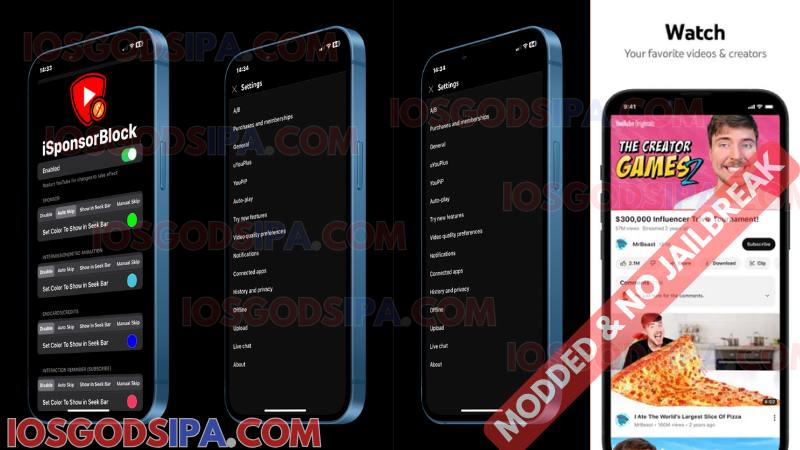
Google’s YouTube app for iOS does a lot of things well. Handling ads quietly isn’t one of them. Neither is letting the Dynamic Island chew into your 2:1 video content, or giving you any straightforward way to stop a channel you’re tired of from clogging up your feed. The official app accepts these inconveniences as facts of life. YouTube OLED tweak does not.
YouTube OLED is a modified iOS build of the YouTube app developed by dvntms, inspired by the functionality of YTLite and built around a clear premise: remove the friction, give you the controls, and let you watch without being bothered. The name is a bit of a red herring: OLED display optimization is included, but it’s one feature among many, and it’s even optional if you’d rather skip it. The real story here is a comprehensively re-engineered YouTube experience that the official app simply doesn’t offer.
What is YouTube OLED tweak for iOS, and what is it actually trying to do?
YouTube OLED is a tweaked IPA build of the official YouTube app that bundles a carefully chosen set of modifications under a single install. The developer describes it as striving to replicate and improve upon what YTLite offered: a streamlined, customizable YouTube experience with the rough edges sanded off and genuine quality-of-life tools added in.
It’s not on the App Store. It installs through sideloading tools or third-party app stores, which sounds more complicated than it is in practice. Once it’s running, it looks and behaves exactly like YouTube, except without the things that make YouTube annoying.
What does the OLED mode actually do to your screen?
Let’s address the name first, because there’s a reasonable chance you’re here expecting something different from what’s actually delivered.
The OLED mode forces the YouTube app’s interface to display true black rather than the dark gray the official app uses. On an OLED-equipped iPhone (iPhone X onward), this means the pixels behind those black areas switch off completely — zero light output, zero power draw. The result is a display where the app’s chrome and background simply disappear, and video content appears to float against a genuinely dark surround rather than a gray rectangle.
The battery saving from this is measurable, though not transformational. The difference between dark gray and true black is meaningful for pixel-level power efficiency on OLED screens, and over a long session it adds up. But the more immediate effect is visual: the contrast improvement on an OLED panel when the app goes full black is immediately obvious in any dim environment.
Here’s the thing worth knowing: OLED mode can be turned off. If you install the tweak and decide the true black interface isn’t for you, you can disable it in YouTube Plus settings and run the app with its standard dark theme. The OLED aesthetic is the default, not a requirement. On iPhones with LCD displays (iPhone XR, SE models, iPhone 8 and older), the distinction between true black and dark gray doesn’t produce a visual difference anyway — the rest of the tweak’s features work identically regardless.
What features come bundled with YouTube OLED IPA 2026?
The OLED theme is the headline, but it travels with a set of features that collectively make the stock YouTube app feel like a prototype.
- Complete ad removal: pre-roll, mid-roll, banner, and overlay ads are gone
- Background playback: audio keeps running when you lock the screen or switch to another app, no YouTube Premium subscription required
- Picture-in-Picture (PiP): watch video in a floating window while you use other apps
- 4K and 1440p resolution unlock: the bundled YTUHD plugin removes the resolution cap YouTube enforces on iOS, enabling 2K and 4K streams on supported devices
- SponsorBlock: automatically skips sponsor segments, promotional plugs, and outros based on community-submitted timestamps
- Return YouTube Dislikes: restores the dislike count Google quietly removed in November 2021
- 60-plus customization options: gesture controls, playback defaults, feed filtering, interface layout adjustments, and more
Which iPhones get the full benefit from OLED mode?
The OLED dark mode’s pixel-shutoff effect only applies to devices with OLED displays:
OLED iPhones (full effect): iPhone X, XS, XS Max, iPhone 11 Pro and 11 Pro Max, all iPhone 12 models, all iPhone 13 models, all iPhone 14 models, all iPhone 15 models, and the full iPhone 16 lineup.
LCD iPhones (all other features work; OLED mode has no display advantage): iPhone XR, all iPhone SE generations, and the iPhone 6, 7, and 8 series.
If your device is in the second group, you still get everything: ad removal, background playback, DontEatMyContent, Gonerino, PiP, all of it. The OLED theme will simply look identical to any other dark mode implementation on your screen, because your display can’t make use of the pixel-shutoff benefit.
How to install YouTube OLED on iPhone without jailbreak
No jailbreak is required. You do need a computer and about 15 minutes on your first attempt. The process is called sideloading, and the right method depends on which iOS version your device is running.
Method 1: Using AltStore
AltStore is the most widely used sideloading tool in the community and works on essentially any iOS version worth worrying about.
- Download and install AltServer on your Mac or Windows PC from altstore.io
- Connect your iPhone via USB and use AltServer to install AltStore on the device
- On your iPhone, go to Settings > General > VPN & Device Management and trust the AltStore developer profile
- Download the YouTube OLED IPA file from a reputable source – iOSGods are the most commonly cited
- Open AltStore on your iPhone, tap the + button, and select the IPA file
- Enter your Apple ID when prompted; AltStore signs the app and installs it
- Return to Settings > General > VPN & Device Management, trust the new developer profile if prompted, and open the app
One honest caveat: AltStore uses a free Apple Developer certificate that expires every seven days. After that, the app stops opening until you refresh the certificate. AltStore handles this automatically in the background as long as your iPhone and the computer running AltServer are on the same Wi-Fi network. It’s a minor recurring chore, but not a difficult one once you’ve set it up.
Method 2: Using Sideloadly
Sideloadly (sideloadly.io) works on the same principle as AltStore but offers a cleaner drag-and-drop interface that many users find more intuitive on first use.
- Download and install Sideloadly on your Mac or Windows PC
- Connect your iPhone via USB and open Sideloadly
- Drag the YouTube OLED IPA file into the Sideloadly window
- Enter your Apple ID and click Start
- Trust the developer profile in Settings > General > VPN & Device Management
- Launch the app from your Home Screen
The seven-day certificate limitation applies here as well. Reconnect your device to the computer and run the signing step again when the certificate expires.
Method 3: TrollStore — the permanent install option
If your device runs iOS 14.0 through 15.x, TrollStore is the cleanest solution by a significant margin. It bypasses Apple’s certificate model entirely, meaning the app stays installed indefinitely without any refresh requirement. No weekly re-signing. No computer after the initial TrollStore setup.
Setting up TrollStore itself requires a few extra steps that vary depending on your specific iOS version, but the iOS sideloading community has well-documented guides for each. Once it’s running, installing any IPA is a matter of importing the file and tapping Install — nothing more. The limitation is that TrollStore is only available for specific builds within the iOS 14 to 15.x range. If you’re on iOS 16 or later, AltStore or Sideloadly are your paths.
The sign-in fix every new user needs to know
Google has added a sign-in protection layer that specifically targets modified YouTube apps, and it affects first-time sign-ins only. If you’ve already been signed in on a previous version of the app, you’re not affected – just make sure you don’t uninstall, because that resets your authentication state.
For new sign-ins, the fix is counterintuitively simple:
- Open the login window inside YouTube OLED and attempt to sign in
- If the login fails, close the login window — do not close the app itself
- Reopen the login window from within YouTube OLED
- Sign in again on this second attempt — it should complete successfully
Once you’re signed in, install YouTube OLED Tweak IPA over your current install rather than replacing it from scratch. The developer is explicit about this: installing over an existing signed-in session preserves your authentication. Starting fresh from an uninstall does not.
How to fix the most common YouTube OLED problems on iPhone
- The app won’t open after installation. Almost always a developer trust issue. Navigate to Settings > General > VPN & Device Management, locate the profile associated with the YouTube OLED app, and tap Trust. The app opens immediately after.
- The app stopped working after a few days. The seven-day Apple certificate expired. If you’re using AltStore and your iPhone is on the same Wi-Fi as your computer, AltStore should have auto-refreshed it. If not, connect via USB and refresh manually through whichever tool you used to install.
- Google sign-in isn’t working for a new account. This is a known friction point with modified YouTube builds and new sign-ins. The community-sourced fix is disarmingly simple: attempt to sign in, and if it fails, close the login window (not the app itself) and reopen it without quitting the app. On the second attempt, sign-in typically completes. If you were already signed in on a previous version of the app, do not uninstall — uninstalling resets the authentication state and triggers this issue from scratch.
- The app crashes immediately on launch. Almost certainly a version mismatch between the IPA build and your iOS version. Download a different version of the IPA, ideally one with a specific note about compatibility with your iOS build.
Is YouTube OLED for iOS safe to use?
On the device security side, the risk comes almost entirely from where you download the IPA, not from the apps themselves. YouTube Plus, YTLitePlus, and uYouPlus are all open-source projects with publicly available repositories on GitHub. The code is reviewable. The developers are known quantities in the iOS community. The danger is in downloading from random third-party sites that might repackage these IPAs with code you didn’t ask for.
Will it get your Google account banned?
The risk exists on paper and is generally considered low in practice. Google has never mounted a systematic enforcement campaign against modified YouTube app users, and individual account suspensions related to this specific use case are rare. The standard community recommendation is to use a secondary Google account with the modified app. This insulates your primary account from any theoretical action and is a sensible precaution regardless of how low the actual risk is.
Does OLED mode actually improve video quality?
Worth clarifying directly, because some guides out there suggest otherwise. YouTube OLED does not enhance video resolution, sharpening, or image processing in any way. The OLED theme makes the app’s chrome and backgrounds true black, which improves perceived contrast on OLED screens. It does not touch the video stream itself.
The feature that actually unlocks higher resolution video is the separately bundled YTUHD plugin, which removes the artificial resolution cap YouTube places on iOS and enables 1440p and 2160p (4K) playback. These are two distinct features that happen to be packaged together in most YouTube OLED IPA builds. If you were expecting the OLED theme to make videos look sharper on its own, that expectation is worth correcting before installation, since the actual improvement is real but operates differently than the name implies.
Frequently asked questions about Youtube Oled IPA
Does YouTube OLED IPA work without jailbreak
Yes. All major YouTube OLED builds (YouTube Plus, YTLitePlus, and uYouPlus) install via sideloading tools like AltStore or Sideloadly, which require no jailbreak and work on current unmodified iOS.
What iOS version is required?
It varies by build. YTLitePlus supports iOS 12 and up. YouTube Plus and uYouPlus generally require iOS 14 or later. If you’re running iOS 15, 16, or 17, you’re covered by all three options.
Do I really need to reinstall the app every seven days?
Only if you’re using AltStore or Sideloadly with a free Apple ID. AltStore auto-refreshes in the background when your iPhone and your Mac or PC share the same Wi-Fi network, so in practice it usually just handles itself. TrollStore users on iOS 14 to 15.x have no refresh requirement at all.
Is YouTube OLED the same as YouTube Premium?
Functionally close, but not identical. YouTube OLED IPA replicates most YouTube Premium features and adds things Premium doesn’t offer: SponsorBlock, restored dislike counts, 4K resolution on iOS, and the true black OLED theme. It is not an official Google product, and installing it involves some risk to your account standing under YouTube’s Terms of Service.


